
Uploading data
The fastest way to feed thola is to drop in a file. The chat understands four formats out of the box:
| Format | What for |
|---|---|
| CSV | Sales, leads, expenses, employees, inventory, attendance |
| XLSX | Same as CSV, with multi-sheet support |
| Invoices, bills, ledgers (we OCR them) | |
| PNG / JPG | Handwritten cash books, receipts, photos of stock counts |
Upload up to 10 MB per file. Larger files should be split — thola will tell you exactly where to split if you hit the limit.
The preview-then-confirm pattern
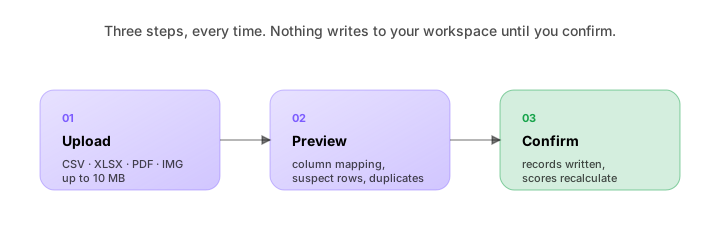
Every upload follows the same three-step flow. No upload writes to your workspace until you confirm.
- Upload — drag the file into the chat or click the paperclip.
- Preview — thola parses the file and shows you:
- The shape it identified (sales? expenses? employees?)
- The columns it mapped (what column became what field)
- The row count, plus any suspect rows flagged
- The duplicate-detection result if you've uploaded similar before
- Resolve & confirm — for each suspect row, decide skip / include / fix. For each duplicate, decide skip / replace / merge. Click Confirm to commit.
This pattern exists because silent imports break trust. We will not import a file you didn't see first.
How column mapping works
When you upload a CSV, thola tries to identify each column from its header and content. For sales data, that means matching to:
| thola field | What it maps from |
|---|---|
customer_name | Headers like "name", "customer", "client", "buyer" |
bill_date | Date columns, parsed flexibly (DD-MM-YYYY, YYYY/MM/DD, etc.) |
bill_amount | Numeric column with the largest range |
bill_id | Headers like "invoice", "bill", "ref" |
currency | Inferred from your workspace; rarely needed in the file |
If thola can't map a column confidently, it shows the column in the preview labelled "Unmapped — choose field". You pick from a dropdown. The next time you upload the same shape, thola remembers your mapping.
Suspect rows
Rows that look wrong get flagged before confirmation. The common categories:
- 🟡 Blank row — empty or all-null. Usually safe to skip.
- 🟡 Header repeated — common in concatenated exports. Skipped by default.
- 🟡 Summary row — totals or subtotals at the bottom. Skipped.
- 🟠 Date out of range — much older or newer than the rest. Worth checking.
- 🟠 Amount sign inconsistent — most rows positive, this one negative (or vice versa).
- 🔴 Currency mismatch — row currency differs from workspace.
Every suspect row shows the actual content side by side with thola's guess.
Duplicate detection
If you've previously uploaded data, thola checks every new row against existing records. Duplicates are caught on:
- Exact
bill_idmatch → almost certainly the same record customer + date + amountmatch → likely the same recordcustomer + datematch with amount differing — flagged for review
For each duplicate, you choose:
- Skip — keep the existing record, ignore the new one
- Replace — overwrite the existing record with the new data
- Merge — combine non-conflicting fields (e.g. add notes from the new row)
PDF & image OCR
For invoices and bills, drop the PDF (or photo) into chat. thola OCRs it and presents you a structured preview:
- Vendor / customer name
- Date
- Line items (description, qty, unit price, amount)
- Subtotal, tax, total
- Payment terms
You confirm the structured version, not the OCR'd image. The original file is kept attached to the record for audit, and you can download it at any time.
OCR works well for typed invoices, less well for handwriting. For handwritten cash books, OCR is best-effort — review the preview carefully.
What happens to your file
When you confirm an upload:
- The structured data is written to your workspace's modules.
- The raw file is stored in the workspace document store, accessible from Import history (per module).
- The Planner adds a system note to the chat: "Imported 142 sales records from June_sales.csv. Sales score updated from 64 to 68."
You can delete the raw file at any time — the structured data stays.
Bulk uploads
For very large datasets — say, two years of sales — the upload is the same shape, but the preview/confirm step is more involved. You'll see:
- Pagination through the preview
- A summary panel: total rows, suspect rows, duplicates, estimated processing time
- A "Process in background" option — confirm once, and thola continues the import while you do other things. You get a notification when it's done.
A 50 MB file split into five 10 MB chunks will work fine. The five chunks will appear as five separate import jobs in Import history, each independently undoable.
Undoing an import
Every import is fully reversible for 30 days. From Import history:
- Click the import job
- Hit Undo import
- The records added by that job are removed; module scores recalculate
This is safe because every row is tagged with the import job that brought it in.
Common questions
Can I automate uploads? Yes — every workspace gets a unique email-to-import address. Forward your bank statement, accounting export, or CRM export there; thola treats it as an upload. The preview-then-confirm flow still runs — you get a chat ping asking to confirm.
My file has a weird format. Use the Custom mapping option in the preview. Define mappings once, save as a template, reuse. Templates are visible to your whole workspace.
Will thola ever auto-confirm an import?
No. Even on workspaces with agent-first posture, imports always require human confirmation. This is a hard rule.
→ Next: Presentation mode