
Offline mode
The mobile app is offline-first. That means more than "it kind of works without internet." Every action is written locally first, every action is reversible without server help, and every conflict that arises later is resolved deterministically.
This page explains what's happening behind the scenes, and what you'll see on-screen when the network is gone.
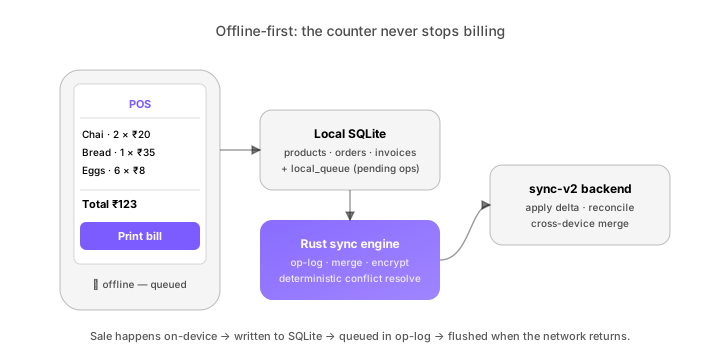
The model
| Layer | What it does |
|---|---|
| UI | Reads and writes data via the local data layer — never the network directly |
| Local SQLite | The source of truth on-device. Tables: products, customers, orders, invoices, attendance, drafts |
| Op log | Append-only list of every state-changing action with idempotency key |
| Rust sync engine | Flushes the op log to the backend, handles encryption, retries, merges |
| sync-v2 backend | Receives ops, applies them in order, reconciles across devices |
If you took the SIM out of the device right now, the UI would not flinch. The op log would queue up. When the SIM came back, the engine would flush.
The status pill
The header of every mobile screen has a small status pill. Its colour and label tell you everything:
| Pill | What it means |
|---|---|
| 🟢 Online | Connected, no pending ops |
| 🟡 Syncing — N pending | Connected, ops are being flushed |
| 🟠 Offline — N queued | Not connected; ops are queued |
| 🔴 Sync error — tap | Connected but a conflict needs your attention |
You can tap the pill any time to see the queue, retry, or force-sync.
What you can do offline
Yes:
- Create a bill at the POS (including print)
- Add a customer, edit a customer
- Update stock (mark damaged, adjust manually)
- Mark attendance check-in / check-out
- Add a task update or photo to a project
- Read any data you've previously seen
- Draft a chat message (it'll send when you reconnect)
Limited:
- File uploads (queued locally, uploaded on reconnect)
- Agent chat replies (cached pre-fetched suggestions only)
- Multi-device dashboards (you see your device's view, not the team's)
No:
- Token-based actions (chat with the Planner — needs the cloud LLM)
- Bulk imports (the parsing pipeline is server-side)
- New workspace / member management
- Payment processing (the gateways need to reach Razorpay/Cashfree)
How conflicts get resolved
When two devices change the same record while one is offline, you get a conflict. The Rust sync engine resolves them with one of three strategies, depending on the record type:
| Strategy | When used |
|---|---|
| Last-writer-wins | Most non-critical fields (notes, tags) |
| Highest-priority field merge | Sales records where stock or amount must be exact |
| Manual resolve | Conflicts the engine refuses to silently merge (e.g. two payments on the same invoice) |
A manual-resolve conflict shows up as a 🔴 Sync error pill. Tap it; you see both versions of the record side by side; pick one, or merge fields. The resolution is itself logged.
The op log
Each action gets an op:
{ op_id: "abc123", workspace_id: "...", user_id: "...",
  type: "pos.bill.create", payload: {...},
  idempotency_key: "...", created_at: "2026-05-19T09:14:23Z",
  device_id: "..." }
Ops are flushed in strict order. The idempotency key ensures retries don't double-apply. The engine tracks:
- Ops not yet flushed (waiting)
- Ops sent but not yet acknowledged (in-flight)
- Ops acknowledged (committed)
- Ops rejected (in conflict)
You can see this state at Settings → Sync → Op log. Most users will never look. When you're debugging a stuck sync, this is where to look first.
Encryption at rest
The local SQLite is encrypted via SQLCipher. The encryption key is derived from:
- Your device's secure store (Keychain / KeyStore / DPAPI)
- Your workspace's content key (synced once at first login)
If the device is lost, you can remote-wipe from Settings → Devices → [device] → Wipe. The wipe is a real wipe — the SQLite file is shredded the next time the device tries to phone home.
Battery and storage
A typical workspace's local data fits in ~50 MB. POS-heavy workspaces with a year of bills might hit 300–400 MB.
The sync engine is batch-oriented — it doesn't ping the server every action; it bundles. Power profile under typical use is comparable to a calendar app. Background sync is throttled aggressively when battery is low.
To free up space without losing access, use Settings → Sync → Prune local history. This trims older bills, customer interactions, and message history from on-device — they remain on the server and refetch on demand.
When things break
Most "thola won't sync" reports come down to one of three causes:
| Symptom | Likely cause | Fix |
|---|---|---|
| Pill stuck on 🟠 with ops queued | Network is technically up but blocked by firewall/proxy | Switch to mobile data, or whitelist *.thola.ai |
| 🔴 conflicts piling up | Multiple devices changed the same record offline | Resolve from the op log, one by one |
| Local data missing after login | Wrong workspace selected | Switch workspace in the header |
For anything else, Settings → Sync → Send diagnostic bundle captures the op log + recent network events and ships them to support encrypted. You don't have to manually screenshot anything.
→ Next: POS at the counter