
Sign up & set up your workspace
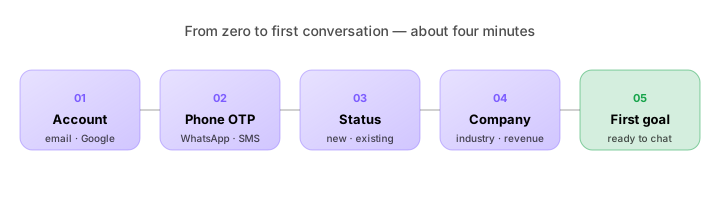
This page walks through the full sign-up → workspace flow, which takes about four minutes end-to-end. There are five steps. None of them are optional.
If you have already signed up and just want to start using the product, skip to Your first conversation.
The five steps, in order
- Account — email + password, or one-click with Google
- Phone identification — link your WhatsApp number for OTP
- Business status — new business or existing business?
- Company setup — name, location, industry, revenue band, team size
- First goal — what you want thola to help you hit, and by when
When you finish step 5, thola drops you into a new chat and the Planner says hello.
1. Account
Open app.thola.ai (opens in a new tab) and choose Register.
You have two options:
- Email + password — fastest, most portable. We'll send you a one-time verification later.
- Continue with Google — uses Google SSO. Recommended if your team already lives in Google Workspace.
Either way, you create a personal account, not a workspace. One person can own or belong to many workspaces — exactly like Slack or Notion.
Why password and not magic link? Because thola is used at the POS counter and in the field, often with shared devices. Passwords are easier to share with explicit handoff than email-magic-links — and our RBAC layer still protects everything sensitive.
2. Phone identification (WhatsApp OTP)
After registration, thola asks for your WhatsApp number. This is the same channel you'll use to:
- receive OTPs for account recovery
- accept workspace invites from teammates
- get critical notifications (failed payment, missed shift)
Enter the number, tap Send OTP, and check your WhatsApp messages. The code is 6 digits and expires in 5 minutes.
No WhatsApp? Choose Use SMS instead on the OTP screen. SMS is slower and more flaky, but it works in countries where WhatsApp isn't the default.
3. Business status
Pick one:
- New business — you're early. thola will guide you through what to track first.
- Existing business — you have at least some history. thola will offer to import data.
The choice affects nothing permanent — you can switch from "new" to "existing" later from Settings. It just changes which onboarding nudges you see in week one.
4. Company setup
This is the big form. Fill it honestly. Every number you put here calibrates thola's expectations for you. If you understate revenue, the Sales agent will think you're underperforming. If you overstate it, every red flag will look like a fire.
You'll be asked for:
| Field | Why thola needs it |
|---|---|
| Business name | Used as your workspace name and on invoices. |
| Country & city | Locale, currency, tax regime, working hours. |
| Industry & sub-industry | Calibrates benchmarks. A 30% margin is great for retail, mediocre for SaaS. |
| Years in business | Distinguishes "early traction" from "scaling" coaching. |
| Annual revenue band | Picks the right peer cohort for scoring. |
| Team size | Drives the Team module thresholds. |
| Stage (idea / early / scaling / mature) | How the Founder module weights early-stage signals. |
When you click Continue, thola creates the workspace, makes you the Owner, and assigns the default Admin role.
5. First goal
The last screen asks for one specific outcome you want in the next 30–90 days. Something like:
- "Cross ₹15 lakh monthly revenue."
- "Get to 60-day runway from 30-day."
- "Hire two people without missing a payroll run."
thola treats this as a target — the Founder module's Goal Success Predictor uses it; the Planner references it in your weekly briefings.
You can edit or replace this any time from Profile → Business goal.
What you have now
When you land on the new-chat screen, behind the scenes you have:
- ✅ A workspace identified by a stable workspace ID
- ✅ An Owner account inside it (you), with the Admin role
- ✅ A business profile with industry, locale, currency, peer cohort
- ✅ A growth goal that the agents will reference
- ✅ Zero data in any module — those scores will populate as you feed thola
The next page shows you how to feed thola its first batch of data without typing anything in by hand.