
Import your sales sheet
You have a spreadsheet of sales — leads, deals, or closed-won records — and you want it inside thola so the Sales agent can actually be useful. This is the recipe.
Five minutes, three steps.
The scene
It's day one. Your Sales dashboard says "no data yet." You have a sheet your reps maintain by hand, or an export from whatever CRM you've been using. You want thola to know about it without spending the afternoon mapping fields.
The steps
1. Open the chat and drop the file in
Open a new chat (sidebar → New chat) and drag your file into the chat box. Or tap the paperclip icon.
Accepted formats:
- CSV — the cleanest
- XLSX / Excel — multi-sheet OK; thola will ask which sheet
- PDF — for invoice books or printed registers (we OCR)
- PNG / JPG — handwritten registers (we OCR, best-effort)
Size limit: 10 MB. If your file is bigger, split it into 2–3 chunks.
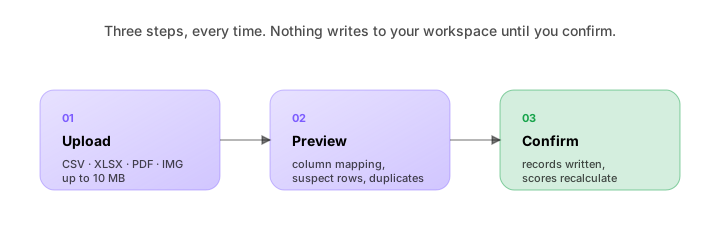
2. Look at the preview, fix anything wrong
Within a few seconds, thola shows you a preview with:
| Section | What's there |
|---|---|
| Shape | "Looks like a sales sheet — found 142 rows, 8 columns." |
| Column mapping | What column became what thola field (customer name → customer_name, etc.) |
| Suspect rows | Blanks, duplicates, weird dates, currency mismatches |
| Duplicate detection | Records that look like ones already in your workspace |
Two things to actually do here:
Fix unmapped columns. If thola couldn't confidently map a column (say it's called "Status_Old" and we're unsure), it'll show as "Unmapped — choose field" with a dropdown. Pick the matching field. thola remembers your mapping for next time.
Decide on duplicates. For each duplicate, choose:
- Skip — keep the existing record
- Replace — overwrite with the new data
- Merge — combine non-conflicting fields
If you're not sure, Skip is the safest default. You can always re-import.
3. Confirm
When the preview looks right, tap Confirm. The records land in your workspace. The Sales score recalculates. The Planner posts a system note in the chat:
Imported 142 sales records from June_sales.csv. Sales score moved from N/A to 64.
You're done. Go look at Home — there are numbers now.
The gotchas
Three things that trip people up:
Date format ambiguity
If your dates are like 03/05/2026 and your workspace is set to UK/India format (DD/MM/YYYY), the import reads that as 3 May. If it's US format (MM/DD/YYYY), it reads as 5 March. Set your workspace date format under Settings → Workspace → Locale before the first import. Mid-import is too late.
Header rows in the middle of the file
If your sheet has section breaks ("Closed deals:" as a header partway down), those rows get flagged as suspect. Skip them in the preview. If your sheet has many, consider deleting them before upload — saves the click-through.
Total / subtotal rows at the bottom
Same as above. The "₹14,72,000 TOTAL" row gets flagged. Skip it. Almost always safe.
Currency mismatch
If one row's currency differs from your workspace currency, it's flagged. Either fix the row before import, or set the row currency explicitly. We don't silently convert — currency conversion at import is where data integrity dies.
What it looks like a week later
After your first import, the Sales agent has real data. You'll be able to ask:
- "Which lead source converts best?"
- "Show me deals stuck in Negotiation."
- "What's our conversion rate this month vs last?"
- "Forecast revenue for next quarter."
If you don't have leads (just closed deals), some questions will return "need lead data." That's the moment to do a second import — a leads sheet.
What to do next
- Drop in your leads (separate sheet from deals if you keep them separate) — same flow, same preview-confirm shape
- Assign leads to your team — once leads are in, route them to reps
- Forecast next quarter — pipeline math, once your data is in
A note on "is this safe?"
A lot of people are nervous about uploading a sales file to anything called "AI."
Three things to know:
- The file is parsed in your workspace, stored encrypted, never used for training models.
- You can delete the original raw file from Import History at any time — the parsed records stay.
- Every import is fully reversible for 30 days. If you decide the data was wrong, Undo import removes every row that came in with it.
You're not committing to anything irreversible by clicking Confirm.