
Your first conversation
Your workspace is fresh. The dashboards are empty. The fastest way to make thola useful is to drop in a file and ask one question. This page shows you the exact five things to try.
The chat is the steering wheel. The Planner's thinking trace shows what's happening behind the streaming reply.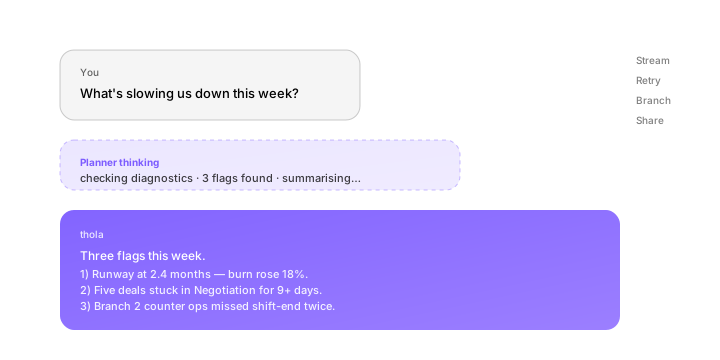
By the end of this page, you'll have:
- a populated Sales dashboard
- your first Red Flag
- a saved chat history you can return to
- a teammate invited (optional)
Open a new chat
From the sidebar, click New chat. The Planner says hello and gives you a starter prompt suggestion. You can ignore it.
The chat box accepts three kinds of input:
- Free text — ask anything in plain language
- File upload — drop in CSV, XLSX, or PDF; thola parses it
- Voice (mobile only) — tap the mic and speak; we transcribe locally
Start with text.
Try 1 — Just ask "How are we doing?"
Type: "How are we doing?"
What happens:
- The Planner recognises this as a high-level summary intent.
- Because you haven't uploaded data yet, every module is empty — so the answer will say so honestly.
- thola offers two next steps: "Upload last month's sales data" or "Tell me your numbers".
This is the right first move. It calibrates what "knowing your business" means before any data is in.
Try 2 — Drop in a sales spreadsheet
Click the paperclip icon (or drag a file into the chat). thola accepts:
- CSV
- XLSX (Excel)
- PDF — only for invoices/bills (we'll OCR them)
- PNG/JPG — for handwritten cash books, with OCR
Files up to 10 MB are accepted. Larger files should be split.
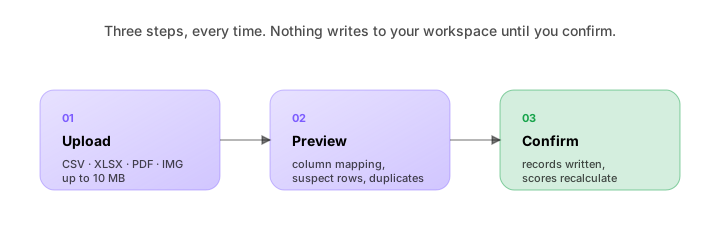
The Planner will:
- Identify the shape of the file (sales, expenses, payroll, inventory, etc.)
- Show you what it found — row count, columns mapped, suspect rows
- Ask you to confirm before storing anything
Why the confirm step? Because we will never silently overwrite a metric you set manually. Two-step ingestion — preview, then confirm — is a thola-wide pattern.
Once confirmed, Sales metrics start populating. The Sales score updates within a few seconds.
Try 3 — Ask a follow-up question
Now ask: "What's our conversion rate this month?"
The Planner routes to the Sales agent, which queries the data you just imported and answers with a number, a comparison to last month, and a one-line interpretation.
Try variations:
- "Which lead source converts best?"
- "Show me deals stuck in Negotiation."
- "Forecast revenue for next quarter."
The Sales agent will refuse anything that doesn't have data backing it — and will tell you exactly what data is missing.
Try 4 — Trigger your first Red Flag
Type: "What red flags do you see?"
The Diagnostics agent scans every module you have data for and lists the worst issues, ranked by severity:
- 🔴 High — blocking growth or revenue
- 🟡 Medium — degrading performance
- 🟢 Low — worth fixing soon
Each flag comes with a suggested fix, owner, and an estimated time to resolve. The fix becomes a task the moment you accept it.
If you have only Sales data so far, you'll see Sales-only flags. As you upload more modules, the flag list will get richer and the fixes will start to cross-cut (e.g. "Cashflow flag suggests pausing two non-essential hires").
Try 5 — Save and return
Every chat is saved automatically. You can:
- See the conversation list in Chat history (left sidebar)
- Pick up exactly where you left off
- Bookmark a particular chat with a star ⭐
Memory note: thola also extracts important facts from your conversations into a long-term workspace memory. So if you tell the Planner "we have a flagship product called Atlas," that fact is available to every future chat — not just the one you said it in.
What to do next
You have data. You've seen a flag. The next thing to learn is what each of the five dashboards actually shows, and how the scores are calculated.
Or, if you want to bring teammates in: