
Upload data the right way
The fastest way to make thola useful is to feed it real data. This recipe is the shape of every upload — the same three steps for sales, expenses, employees, inventory, attendance — and the small fixes for the half-dozen things that trip people up.
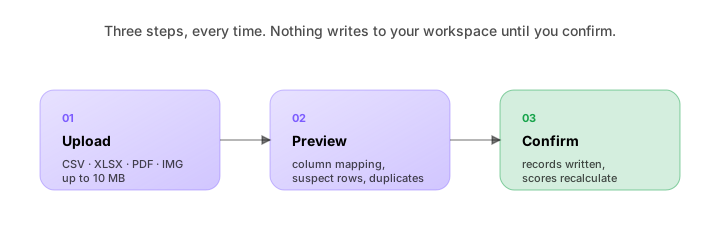
The shape
| Step | What happens | Time |
|---|---|---|
| 1. Upload | Drag file into chat, or tap paperclip | 5s |
| 2. Preview | thola shows what it found; you fix unmapped columns and decide on duplicates | 1–3 min |
| 3. Confirm | Records land in your workspace; scores update | 5s |
Nothing writes until you tap Confirm. You can walk away mid-preview and come back later — your upload waits.
What thola accepts
| Format | What it's for | Notes |
|---|---|---|
| CSV | The cleanest input | UTF-8, comma-separated; first row should be headers |
| XLSX (Excel) | Multi-sheet OK | thola asks which sheet if there are several |
| Invoices, bills, registers | OCR best for typed; mixed accuracy for handwritten | |
| PNG / JPG | Handwritten cash books, receipts, photos of stock counts | Best-effort OCR; review carefully |
Hard limit: 10 MB per file. If your file is bigger, split into 2–3 chunks. thola tells you exactly where to split.
The first-time-setup decisions
Before your first import, make sure these are right (15 minutes, one-time):
1. Date format
Settings → Workspace → Locale → Date format: DD-MM-YYYY (India default), YYYY-MM-DD, or MM/DD/YYYY.
If your CSV has 05/06/2026 and your workspace format is wrong, every date is wrong. Fix the workspace format before the first import.
2. Currency
Set at workspace creation, can't change later. If you spotted it wrong, contact support — we'll migrate.
3. Workspace timezone
Affects when "yesterday" begins. Settings → Workspace → Locale → Timezone.
4. Decimal separator
In India, "₹1,00,000" reads fine. In UAE, "AED 100,000" is comma-thousands. Some Excel exports use , for decimal (European-style). thola handles this if the column is clearly numeric, but be aware.
The preview screen, explained
When you upload, you see four sections:
Shape
"Found 142 rows, 8 columns. Looks like a sales sheet."
thola identifies the file's shape. Sometimes it asks: "This could be sales or invoices — which?" Pick.
Column mapping
Each column from your file is mapped to a thola field. Confidence shown per column:
| Your column | Mapped to | Confidence |
|---|---|---|
bill_no | bill_id | 99% |
customer | customer_name | 95% |
date | bill_date | 92% |
amt | bill_amount | 88% |
Status_Old | Unmapped — choose field | — |
For unmapped columns, pick from the dropdown. thola remembers your mapping for next time.
Suspect rows
Rows thola is unsure about:
- 🟡 Blank row — empty or all-null
- 🟡 Header repeated — common in concatenated exports
- 🟡 Summary row — totals/subtotals at the bottom
- 🟠 Date out of range — much older or newer than the rest
- 🟠 Amount sign inconsistent — one row negative when most are positive
- 🔴 Currency mismatch — row currency differs from workspace
For each suspect row, choose: Skip, Include, or Fix (edit the row before confirming).
Duplicate detection
If you've imported similar data before, thola catches duplicates:
- Exact
bill_idmatch → almost certainly the same record customer + date + amountmatch → likely the same record
For each duplicate: Skip, Replace, or Merge.
The gotchas
Don't fight the preview
If you see 47 suspect rows and you're tempted to "just confirm everything," don't. The suspect-row count is honest. Either:
- Skim through, accept the obvious skips (summary rows, blanks)
- Fix the source spreadsheet (delete summary rows, normalize date format)
- Re-import the cleaner version
Five minutes of preview hygiene saves hours of "why is this number wrong?" later.
PDF OCR is best-effort
Typed PDFs (printed invoices, exported reports) — accuracy 95%+. Handwritten PDFs (cash books, ledger photos) — accuracy 70–85%, depends on legibility.
For OCR'd files, the preview shows side-by-side: the OCR'd structured version + the original. Verify the structured version matches.
"Email-to-import" automates this
If you generate the same shape of file regularly (a weekly sales export, a monthly bank statement), set up email-to-import:
- Settings → Workspace → Email import
- Copy the unique email address (e.g.
import-abc123@thola.ai) - Forward your file to that address
thola treats it as an upload. You get a chat notification asking to confirm the preview. Same three-step flow, just kicked off by email.
Bulk historical imports — use Background mode
If you're importing 2 years of data in one go, the preview can be heavy (thousands of suspect rows). Tap Process in background during preview. thola walks through it asynchronously; you get a notification when done. Each suspect row that needs your decision lands in a triage queue you clear at your pace.
Undo within 30 days
Every import is fully reversible for 30 days. Import History → [job] → Undo import. Removes every row added by that job. Scores recalculate. If you find out the file was wrong, undo and re-import.
A note on what we don't do
- Auto-confirm imports. Even on agent-first workspaces, imports require human confirmation. This is a hard rule.
- Silent overwrites. If a duplicate would replace existing data, we ask before doing it.
- Cross-workspace imports. You can only import into your current workspace. The data never leaks across.
What's next
- Import your sales sheet — the specific recipe for sales
- Categorise your expenses — what happens after a bank-statement import
- Reference → Import history — the audit trail of every upload